

Configure Multi-Function Display Settings: Step-by-Step Guide

Table of Contents
- What You'll Need Before Starting
- Accessing the Main Menu on Your MFD
- How to Configure Multi-Function Display Settings Step by Step
- Best MFD Screen Layout for Sailing
- How to Update Marine MFD Firmware
- Troubleshooting MFD Display Issues
- Common Mistakes to Avoid
- Frequently Asked Questions
Last Updated: September 27, 2026
What You'll Need Before Starting
Before configuring your multi-function display settings, gather your vessel's MFD, owner's manual, and a clear sense of which information matters most to you: navigation charts, fishing data, weather overlays, or engine diagnostics. Most modern MFDs use physical buttons, steering wheel controls, or touch-screen navigation, knowing which your unit responds to will save time during setup.
Accessing the Main Menu on Your MFD
The main menu is your gateway to all configuration options. Most MFDs display the main menu on startup, but if yours doesn't, you'll need to know how to summon it.
Using the Info Button and Steering Wheel Controls
The info button on your steering wheel or dashboard is your quickest route to the main menu. Press it to access the primary menu tree and navigate to setup options.
Steering wheel controls give you hands-free access to menu functions. Most vessels use a toggle switch or scroll wheel on the steering column:
- Press and hold the center button to enter setup mode
- Scroll up or down to move between menu items
- Press the center button to select an option
- Hold the back button to return to the previous menu level
Holding a button for 2-3 seconds often opens advanced menus (system reset, firmware info) that a quick tap won't access.
How to Configure Multi-Function Display Settings Step by Step
Configuring your MFD correctly ensures you get the information you need when you need it. Follow these steps in order, and you'll have a display customized to your sailing style.
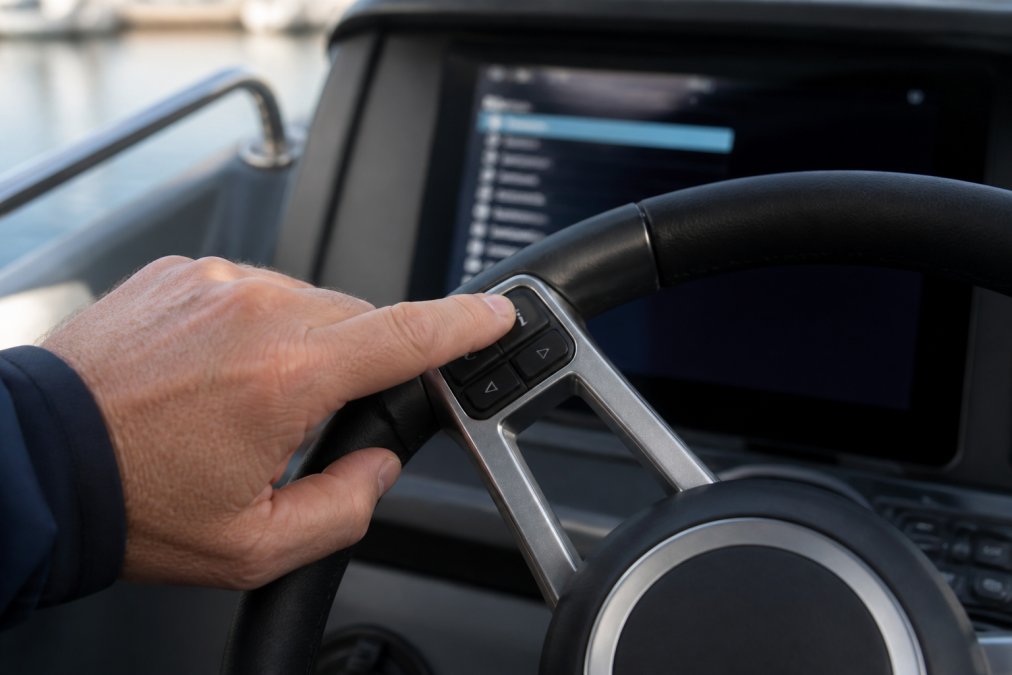
Step 1: Enter Setup Mode
Press and hold the info button for 3-5 seconds to enter setup mode. Your display shifts to a configuration interface showing a menu tree of user settings and preferences. Setup mode separates personal adjustments from core navigation functions, so your changes won't affect critical safety data.
Step 2: Navigate the Menu Tree
Use steering wheel controls or touch interface to scroll through hierarchical categories (Display Settings, Navigation Preferences, User Profile, System Information). Each branches into subcategories, for example, Display Settings contains Brightness, Color Scheme, and Widget Layout. Most MFDs highlight your current selection; press back to return to the previous level.
Step 3: Adjust Clock and Date Settings
Navigate to System Settings or Time/Date Configuration. Select your preferred time format (12-hour or 24-hour; many sailors prefer 24-hour for clarity), set your local time zone, and confirm the current date. Your MFD uses this for navigation logging and event timestamps.
Step 4: Customize Widget Layouts
Widget layouts let you organize your screen into split-screen views. Enter the Widget Layout section and select your preferred divisions (single full screen, two-panel split, or multi-panel grid), then assign specific functions to each panel. Save your configuration after each change.
Step 5: Save Your User Profile Preferences
Save your configuration as a user profile before exiting setup mode. Use descriptive names like "Coastal Navigation" or "Racing Configuration." You can load profiles anytime or switch between them depending on your sailing mission.
Best MFD Screen Layout for Sailing
The optimal screen layout depends on your sailing mission, vessel size, and the data you prioritize. Rather than a one-size-fits-all approach, successful sailors configure different layouts for different conditions and save them as separate user profiles.
Layout Configurations by Sailing Mode
Coastal Navigation Layout (2-panel split)
For day sailing in familiar waters, use a two-panel layout: left panel (60%, navigation chart with vessel position and waypoints) and right panel (40%, engine diagnostics and vessel health data). Enable "chart panning" if available to scroll ahead without losing your position indicator.
Offshore Passage Layout (3-panel grid)
For longer passages, use a 3-panel grid: left panel (40%, extended-range navigation chart), top right (30%, weather overlay with wind and pressure), bottom right (30%, engine data and compass rose). This provides strategic, tactical, and operational views simultaneously.
Racing Layout (3-panel tactical)
For racing, use a 3-panel layout: left (50%, race course chart with marks and AIS overlay), top right (25%, wind data and polar diagram), bottom right (25%, boat speed, heading, heel angle, and time to next mark). Minimize menu navigation, all critical data should be visible at a glance.
Furuno TZT9E Multi-Function Display →
Fishing Layout (sonar-dominant)
For fishing, prioritize sonar data: full screen or 70% for sonar/fish finder display, with a small navigation chart overlay (30% or less) showing position and saved fishing spots.
Adjusting Layouts for Vessel Size and Helm Position
Vessel size and helm position affect optimal layout. Smaller vessels (under 30 feet) benefit from 2-panel layouts with larger text; larger vessels (40+ feet) work better with 3-4 panel layouts viewed from distance. Center-console or open-bridge vessels exposed to sunlight need simpler 2-panel layouts with high-contrast colors. Test your layout from your actual helm position in daylight.
Calibrating Screen Brightness and Color for Different Conditions
Brightness and color settings are as important as layout design. Incorrect settings make even a well-designed layout hard to read.
Night sailing brightness and color:
Saving and Switching Between Multiple Layouts
Create multiple profiles for different sailing scenarios using descriptive names ("Coastal Day," "Offshore Night," "Racing," "Fishing," "Docking"). Most MFDs let you switch profiles from the home screen. Practice switching in calm conditions. Export profiles to external storage (USB or cloud) to protect against power loss or service needs.
How to Update Marine MFD Firmware
Check for firmware updates regularly via System Information > Firmware Version or Software Update. Updates typically take 10-20 minutes; keep your electrical system running and never power down during the process, as this can corrupt your system.
Troubleshooting MFD Display Issues
Most display problems stem from simple configuration mistakes, connectivity issues, or control interface misalignment. Rather than working through solutions randomly, use a visual decision tree to isolate the root cause efficiently.
Menu Access Problems
If your info button doesn't open the main menu: (1) Press and hold for 5 seconds and watch for visual feedback; (2) Check for a lock icon and press back for 3 seconds to unlock, or navigate to System Settings > Security; (3) Verify Steering Wheel Controls are enabled in Display Settings > Control Input; (4) Perform a soft restart by holding power for 10 seconds, wait 30 seconds, then power on; (5) If menu access fails after a firmware update, recalibrate at System Information > Calibration.
Display Not Responding to Input
For a frozen interface: hold back button 10 seconds to force-exit, press the reset button on the unit, or power cycle (shut down, wait 60 seconds, restart). For touchscreen issues, wipe with a dry microfiber cloth to remove salt residue. For a crashed system (black screen or error codes): verify power cable connections, check your backup battery (may require service), and note any error codes to provide to a technician.
Resetting Display to Factory Defaults
If your configuration is corrupted, you've made changes you can't undo, or you're selling your vessel and want to clear all personal data, a factory reset restores your MFD to its original state.
To perform a factory reset:
- Navigate to System Settings > Advanced Options > Factory Reset (menu paths vary by manufacturer).
- Your MFD will display a warning: "This action will erase all user settings, profiles, and saved data. This cannot be undone." Confirm that you understand this consequence.
- Enter your security PIN if one is set. This prevents accidental resets.
- Select "Proceed" and wait 2-3 minutes while your MFD reinitializes.
Common Mistakes to Avoid
Learning from others' mistakes saves you time and frustration. Here are the pitfalls most sailors encounter.
| Common Mistake | Solution | Impact |
|---|---|---|
| Skipping profile save | Always save after configuration changes | Lose custom settings if power lost |
| Night brightness too high | Test night mode before dark conditions | Lose night vision and situational awareness |
| Ignoring firmware updates | Check for updates monthly | Miss performance improvements and new features |
| Configuring underway | Set up in calm conditions | Reduce helm distraction and safety risks |
| Not backing up settings | Export profile to external storage | Cannot restore if MFD fails |
Frequently Asked Questions
How do I access the main settings menu on my marine MFD?
Most marine MFDs provide menu access through the info button on your steering wheel controls or a dedicated menu button on the display itself. Press and hold the info button, or tap the menu icon on your screen to enter the main menu tree. From there, use the toggle or scroll function to navigate to 'Setup' or 'Settings.' The exact path depends on your MFD model, consult your vessel's documentation for model-specific navigation steps.
What is the best MFD screen layout for sailing?
The best layout depends on your sailing conditions and priorities. Most sailors benefit from a split-screen view that combines chart display with wind and water-speed data. For offshore navigation, pair your chart with radar overlay and depth sounder information. Adjust widget layout through your user settings to prioritize the data you check most frequently. Save this configuration as a user profile so you can switch between layouts for different sailing scenarios.
Can I save my preferred MFD configuration as a user profile?
Yes. Most modern MFDs allow you to save user profile preferences through the settings menu. Configure your display customization, widget layouts, and parameter preferences, then select 'Save Profile' or 'Save User Settings.' You can typically store multiple profiles, making it easy to switch between configurations for day sailing, night navigation, or fishing mode. This feature is especially useful if multiple crew members operate your vessel.
How do I troubleshoot MFD display issues if the menu won't open?
First, check that the display is powered on and the brightness is not set too low. If the menu still won't respond, try a long-press on the info button for 3-5 seconds. If the interface remains unresponsive, perform a system reset by holding the power button for 10 seconds, or access the reset option through a hard reset procedure outlined in your MFD manual. If problems persist, check your firmware version, outdated firmware can cause menu access issues that an update will resolve.